

















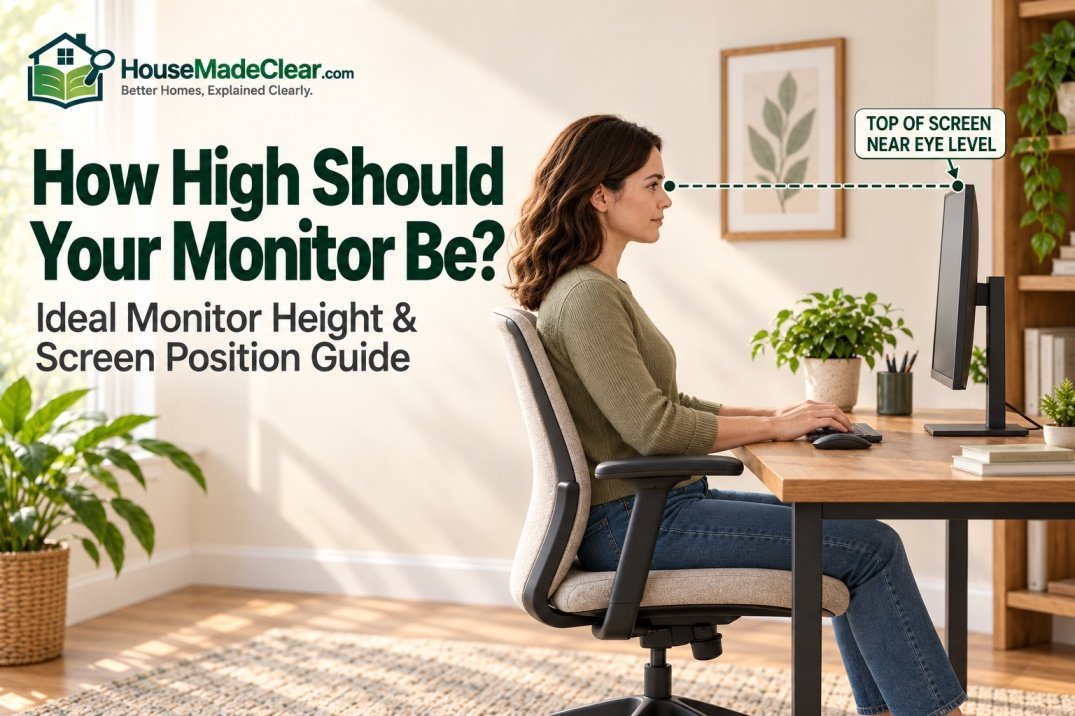
Your monitor should generally be positioned so the top of the visible screen is at or slightly below your eye level when you are sitting comfortably with your head and neck in a neutral position.
You should not need to tilt your head upward to see the top of the screen.
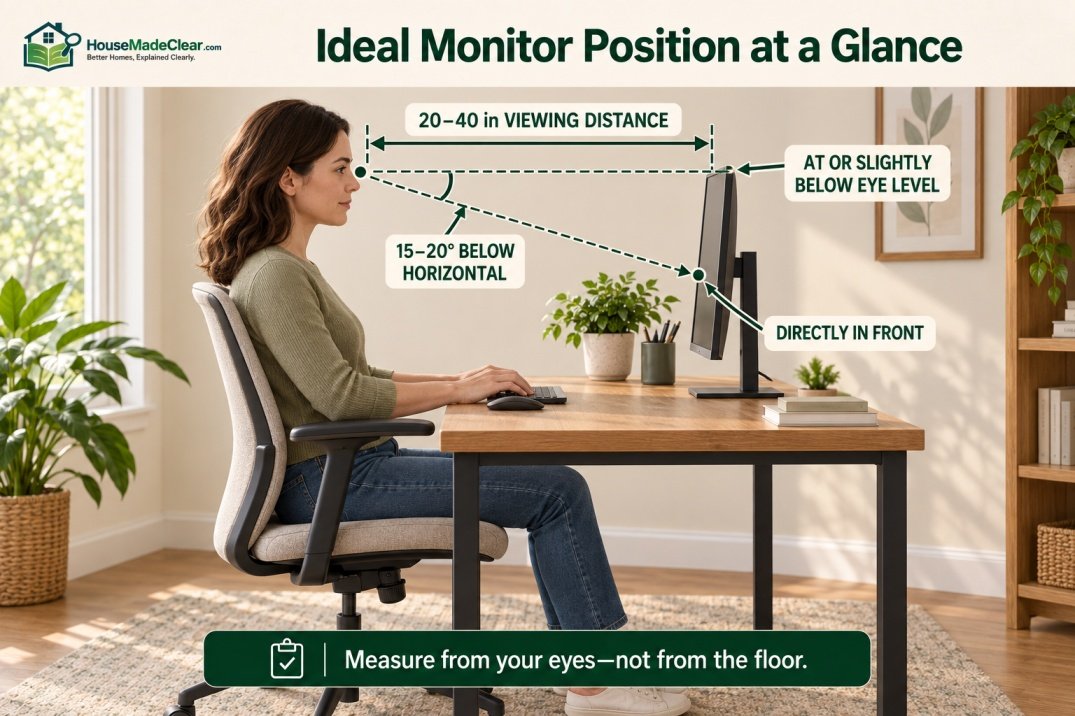
For many people, the center of the monitor naturally sits about 15–20 degrees below horizontal eye level, while the screen itself is positioned roughly 20–40 inches from the eyes, depending on screen size, vision, text size, and personal comfort.
That means there is no universal monitor height such as “42 inches from the floor” that works for everyone.
Your ideal monitor height depends on:
- Your seated eye height
- Chair height
- Desk height
- Monitor size
- Monitor stand or arm
- Viewing distance
- Whether you use one or multiple screens
- Whether you wear bifocals or progressive lenses
- Whether you alternate between sitting and standing
Quick Answer
For a typical computer workstation:
- Position the top of the monitor at or slightly below eye level
- Keep the monitor directly in front of you
- Let your eyes naturally look slightly downward toward the center of the screen
- Start with the monitor approximately 20–40 inches from your eyes
- Avoid placing the screen so high that you need to tilt your chin upward
- If you wear bifocals or progressive lenses, you may need the monitor lower than the usual eye-level position
A simple setup check is to sit normally, look straight ahead, and adjust the screen until its upper area is around eye level while the center of the screen falls naturally below your straight-ahead line of sight.
OSHA’s computer-workstation guidance recommends placing the monitor directly in front of the user, with the top line of the screen at or below eye level. It describes a preferred viewing distance of approximately 20–40 inches and notes that the center of the screen normally falls about 15–20 degrees below horizontal eye level.
Ideal Monitor Height at a Glance
| Monitor Setup Detail | Useful Starting Point |
|---|---|
| Top of monitor | At or slightly below eye level |
| Center of monitor | About 15–20° below horizontal eye level |
| Viewing distance | About 20–40 in |
| Horizontal position | Directly in front of user |
| Single primary monitor | Centered with body/keyboard |
| Two monitors, one primary | Primary directly in front |
| Two equally used monitors | Center yourself between them |
| Laptop used for long sessions | Raise display and use separate keyboard/mouse |
| Bifocal/progressive-lens user | Monitor may need to be lower |
| Window position | Screen preferably perpendicular to window |
These are ergonomic starting points rather than rigid measurements.
How High Should Your Monitor Be?
The simplest answer is:
High enough that the top of the screen is around eye level, but not so high that you need to look upward.
For most users, the screen should occupy more of the visual field below the straight-ahead eye line than above it.
That is different from placing the center of the monitor exactly at eye level.
OSHA’s guidance on proper monitor height and viewing distance recommends keeping the top of the screen at or below eye level and positioning the display at a comfortable viewing distance.
If the center of a large monitor is positioned at eye height, the top of the screen can become much too high.
You may then unconsciously:
- Tilt your head backward
- Raise your chin
- Look upward repeatedly
Instead, the upper edge of the viewing area should generally be around eye level while the center sits lower.
What Is the Ideal Monitor Height?
The ideal monitor height is determined by your eyes—not by the floor.
This is important because two people sitting at the same desk may have very different:
- Torso lengths
- Chair settings
- Eye heights
For example, imagine two people using the same 30-inch-high desk.
One person’s seated eye level might be several inches higher than the other’s.
A monitor positioned perfectly for the taller person could be too high for the shorter user.
That is why adjustable:
- Monitor stands
- Monitor arms
- Chairs
are useful in shared workspaces.
Should the Top of the Monitor Be at Eye Level?
Yes, at or slightly below eye level is a strong starting point for most people.
OSHA specifically recommends positioning the top line of the screen at or below eye level so the monitor can be viewed without repeatedly bending the head or neck.
Think of it this way:
Eyes looking straight ahead → upper part of screen
Eyes looking slightly downward → center of screen
This creates a more natural downward viewing angle.
Should Your Eyes Be Level With the Top or Center of the Monitor?
For a conventional desktop monitor:
Your eyes should generally align closer to the top of the screen than the center.
The exact point varies by person and screen.
OSHA describes the center of the monitor as normally sitting approximately:
15–20 degrees below horizontal eye level.
So if your eyes align exactly with the middle of a large screen, there is a good chance the upper portion is unnecessarily high.
Should You Look Straight at the Monitor or Slightly Down?
This is one of the most useful questions to answer.
You should generally:
look slightly downward toward the main viewing area of the monitor rather than looking upward.
You can still look straight ahead at the upper portion of the display, but most of your screen should fall slightly below that horizontal sight line.
OSHA describes the most commonly viewed area as slightly below horizontal eye level and advises arranging the screen so it can be seen without looking upward or leaning forward.
So the goal is not:
head down
or:
chin up.
The goal is:
head relatively neutral + eyes looking slightly downward.
What Is the Proper Monitor Height?
A proper monitor height should allow you to use the computer while your:
- Head remains balanced over your torso
- Neck stays relatively neutral
- Shoulders remain relaxed
- Back stays supported by the chair
If you constantly tilt your head up or down to read the screen, the display position probably needs adjustment.
The exact screen height in inches from the floor matters much less than whether the display matches your seated posture.
Correct Monitor Height: A Simple Test
Use this quick test.
Step 1: Adjust Your Chair First
Sit in the position you normally work in.
Do not adjust the monitor while sitting unusually upright just for the measurement.
Step 2: Relax Your Shoulders
Keep your head balanced naturally.
Step 3: Look Straight Ahead
Do not deliberately look upward or downward.
Step 4: Check the Screen
Your straight-ahead eye line should fall around the:
upper portion of the screen
rather than the center or bottom.
Step 5: Look at the Center
Your eyes should move slightly downward naturally.
If you need to raise your chin to see the upper screen, lower the monitor.
If you continually bend your neck downward, consider raising it slightly.
Optimal Monitor Height Is Not a Fixed Number
You may see recommendations online such as:
- 40 inches from floor
- 42 inches
- 45 inches
- 48 inches
Those measurements are not useful as universal rules.
Monitor height depends on the combination of:
floor → chair seat → seated user → eye level → monitor.
A person with a longer torso sitting on a higher chair naturally has a higher eye line.
Instead of asking:
“How many inches from the floor should my monitor be?”
ask:
“Where is the monitor relative to my eyes when I am sitting normally?”
That produces a much more useful setup.
Ergonomic Monitor Height
An ergonomic monitor height supports the workstation as a whole.
The screen should not force you to compensate for:
- Poor chair height
- Poor desk height
- Insufficient desk depth
For example, if your monitor is positioned correctly but your keyboard is too high, you may still sit awkwardly.
Similarly, if the desk is too shallow, you may push yourself away from the keyboard just to create enough viewing distance.
Our guide to standard desk dimensions explains how desk height and depth affect the entire workstation.
How Far Should a Monitor Be From Your Eyes?
OSHA gives a preferred monitor viewing-distance range of approximately:
20–40 inches
or roughly:
50–100 cm.
However, this is not a requirement to position every display at exactly:
20 inches
or:
40 inches.
The appropriate distance depends on:
- Screen size
- Resolution
- Text size
- Vision
- Work being performed
You should be able to read the screen without:
- Leaning forward
- Squinting
- Pulling your head backward
Is Arm’s Length a Good Monitor Distance?
Yes, about an arm’s length is a useful quick starting point.
NIOSH recommends positioning an external monitor generally around arm’s length away, with the top of the screen at or below eye level.
But arm lengths vary.
So use this as a practical check rather than a precise measurement.
After placing the monitor:
- Sit against your chair back.
- Extend your arm.
- See whether the screen is roughly around your fingertips.
- Adjust based on readability.
If the text feels too small at a comfortable viewing distance, increasing:
- Font size
- Display scaling
may be better than pulling the monitor extremely close. NIOSH recommends a home office monitor setup with the screen around arm’s length away and the top of the display at or below eye level.
Is 20 Inches Too Close to a Monitor?
Not necessarily.
Around:
20 inches
is at the nearer end of OSHA’s preferred viewing-distance range.
For a smaller screen, it may feel comfortable.
For a large:
- 27-inch
- 32-inch
- Ultrawide
display, you may prefer more distance.
The screen should fit comfortably within your visual field without requiring excessive:
- Head turning
- Eye movement
Is 30 Inches a Good Monitor Distance?
For many desktop monitors:
30 inches
can be a very comfortable starting distance.
It falls near the middle of OSHA’s broad 20–40-inch preferred range.
Whether it works depends on:
- Monitor size
- Text scaling
- Your vision
A 30-inch distance may feel generous for a small display and relatively close for a very large one.
Is 40 Inches Too Far From a Monitor?
Not necessarily.
OSHA’s guidance extends to approximately:
40 inches
as part of the preferred viewing range.
But if 40 inches causes you to:
- Lean forward
- Crane your neck
- Squint
move the screen closer or increase the displayed text size.
Distance should support comfortable reading while your back remains against the chair.
Monitor Height and Distance Work Together
You cannot optimize height without also considering distance.
Imagine the monitor is:
very high + very close.
You may need to tilt your head backward dramatically.
If it is:
low + very far away,
you may lean forward to read.
The best setup places the screen within a comfortable combination of:
- Vertical viewing angle
- Horizontal distance
while your posture stays relatively neutral.
Ideal Monitor Height for a 24-Inch Monitor
A 24-inch monitor does not need a special fixed height.
Use the same principle:
Top of the screen around or slightly below eye level.
Because the display is relatively compact, its center naturally sits less far below eye level than the center of a very large screen.
A viewing distance toward the shorter portion of your comfortable range may work well. Free monitor height and distance calculator is available on our website which you can check according to your actual room size.
Ideal Monitor Height for a 27-Inch Monitor
For a 27-inch display:
- Top near or slightly below eye level
- Center below eye level
- Screen directly in front
remain the correct starting points.
You may need to move the display slightly farther away than a smaller monitor if it fills too much of your visual field.
There is no reason to raise a 27-inch display simply because it is larger.
In fact, larger screens often require careful attention to keeping the upper edge from becoming too high.
Ideal Monitor Height for a 32-Inch Monitor
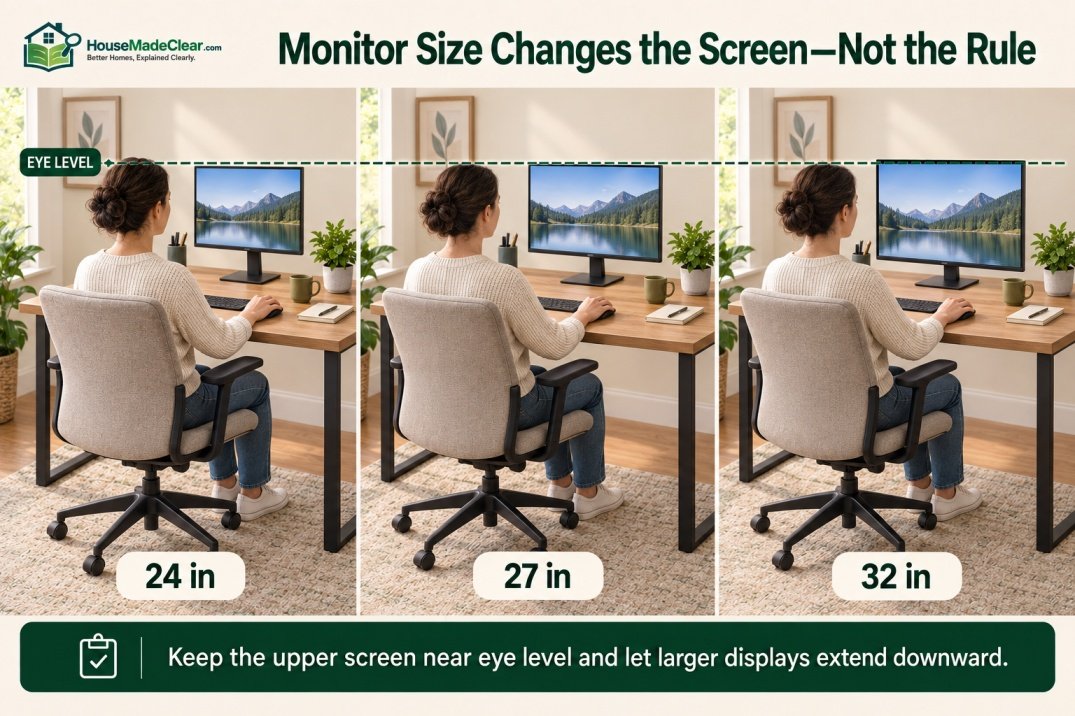
A 32-inch screen has a substantial vertical dimension.
Avoid positioning its center directly at eye level.
That can place the upper part of the screen unnecessarily high.
Instead:
Align the upper viewing area around eye level and let the large display extend downward.
You may also prefer a greater viewing distance so the entire screen is easier to scan.
Large Monitor Height
As displays get larger, users sometimes make the mistake of raising the entire monitor to “eye level.”
But what should be near eye level is primarily the:
top portion of the viewing area
rather than the center.
OSHA notes that very large monitors can increase downward viewing angles, which is another reason to evaluate the actual display rather than apply one generic height measurement.
Ultrawide Monitor Height
For an ultrawide monitor:
- Keep the upper edge around eye level
- Center your primary work area in front of you
- Sit far enough away to see the screen comfortably
Height generally follows the same principles as a conventional monitor.
The bigger challenge is horizontal viewing.
If the ultrawide is extremely broad, avoid repeatedly twisting your:
- Head
- Neck
- Torso
to work at one extreme edge.
Place your most frequently used content closer to the center.
Curved Monitor Height
A curved display does not require a fundamentally different vertical position.
The top of the viewing area should still remain:
at or slightly below eye level.
Curvature mainly changes the relationship among:
- Viewing distance
- Screen edges
- User position
Try to sit close to the horizontal center of the curve.
Monitor Tilt Angle
Most monitors can tilt backward slightly.
A small tilt can help the screen face your eyes more directly, particularly when:
- Monitor sits lower
- Screen is large
Avoid extreme tilt.
The display should remain comfortable to view without causing reflections or forcing posture changes.
Monitor Height With a Laptop
Laptops create an ergonomic compromise because the:
screen and keyboard are physically attached.
If you raise the laptop so the screen reaches a better viewing height, the keyboard also becomes too high.
If you keep the keyboard low enough for comfortable typing, the display can sit too low.
For longer work sessions, NIOSH recommends an external monitor where practical, or separate keyboard/mouse components that allow the display and input devices to be positioned independently.
How High Should a Laptop Screen Be?
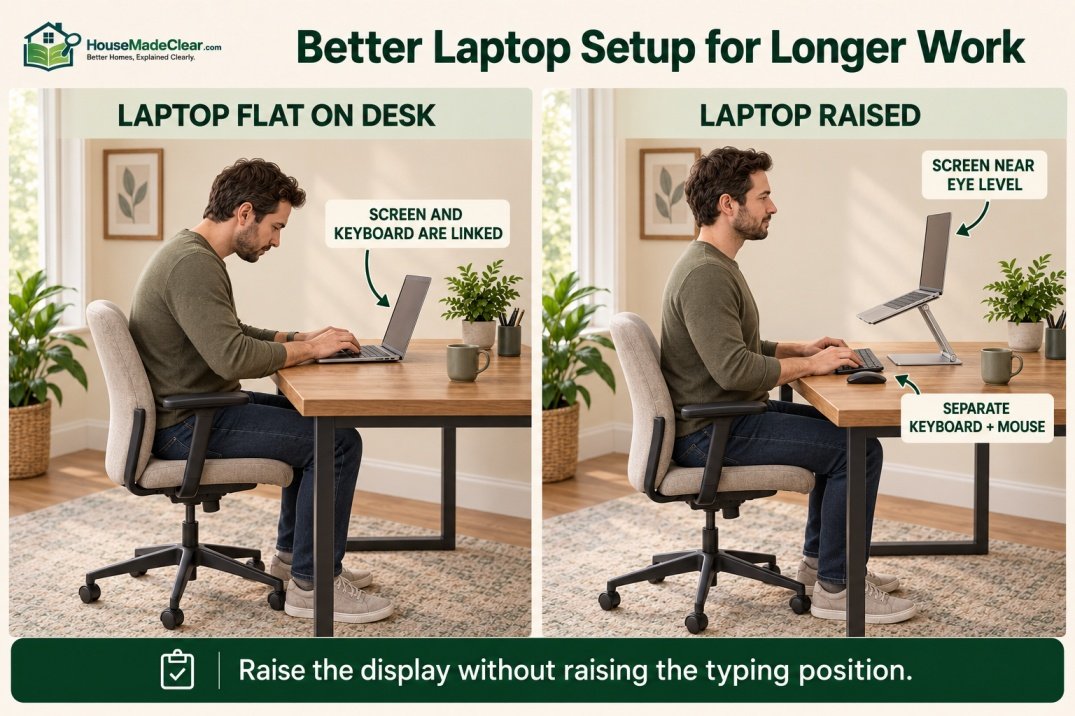
If you use a laptop as your main display for extended periods:
- Raise the laptop on a stable stand.
- Position the upper screen around eye level.
- Use an external keyboard.
- Use an external mouse.
This separates:
screen height
from:
keyboard height.
Avoid simply placing a laptop on several unstable objects.
Use a stable surface or appropriate stand.
Laptop Plus External Monitor
If you primarily use the external monitor:
Position the external monitor directly in front of you.
The laptop can sit beside it as the secondary screen.
Do not center yourself between them if you spend:
80–90%
of your time looking at the external monitor.
Your body should align with the screen you use most.
Dual Monitor Height
For two monitors, both screens should generally be positioned at similar comfortable vertical heights.
The more important question is:
Which monitor do you use most?
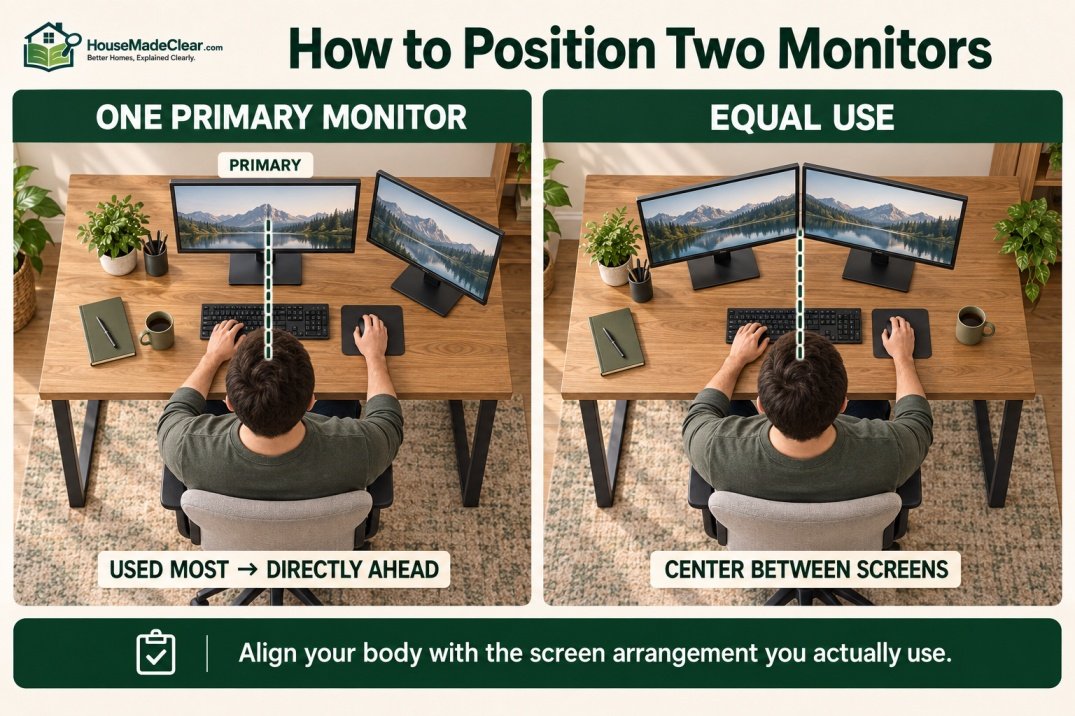
OSHA recommends positioning the primary monitor directly in front when one display is used more frequently. If the two monitors are used equally, they can be placed next to each other with the user positioned between them to minimize head movement.
Dual Monitors With One Primary Screen
If one monitor handles most of your work:
Primary monitor → directly in front
Secondary monitor → beside it
Avoid putting the bezel between your eyes if doing so forces your head to remain turned toward the primary display all day.
Dual Monitors Used Equally
If you genuinely use both screens about equally:
- Place them side by side
- Keep heights similar
- Position the meeting point approximately in front of you
- Angle the displays slightly inward if helpful
This reduces the amount of head rotation required to switch screens.
Three-Monitor Setup
For three displays:
- Primary monitor should usually remain directly in front
- Secondary screens sit to either side
- Angle outside monitors toward you
Do not make the entire array so wide that frequently used information requires substantial torso rotation.
If all three monitors are extremely large, consider whether all of them need to be equally prominent.
Monitor Height for a Standing Desk
The same eye-level principle applies when standing.
When you raise a sit-stand desk, your eye level rises substantially.
The monitor should therefore rise with the work surface or monitor arm.
Do not simply stand up while leaving the monitor at its original seated position.
That may force you to:
- Bend your neck
- Look downward excessively
A height-adjustable monitor arm can make repeated sit-to-stand transitions easier.
Monitor Position When Switching Between Sitting and Standing
A good sit-stand setup preserves the relationship among:
- Eyes
- Screen
- Keyboard
when the desk moves.
If both monitor and keyboard sit on the adjustable desktop, they generally rise together.
But you may still need small adjustments because your posture differs between:
- Sitting
- Standing
Do not assume one monitor tilt or distance will feel identical in both positions.
Monitor Height for Shorter Users
Shorter users frequently encounter screens positioned too high because:
- Fixed desks are relatively high
- Monitor stands add several inches
- Chairs are adjusted low to keep feet on floor
Possible improvements include:
- Lowering monitor
- Removing unnecessary monitor riser
- Adjusting chair
- Supporting feet if chair needs to be raised
Avoid stacking the monitor on books automatically simply because monitor stands are popular.
A monitor riser is only useful when the display is actually too low.
Monitor Height for Taller Users
Taller users may need to raise the display.
This is especially common when a short built-in monitor stand places the screen below comfortable eye level.
Options include:
- Monitor riser
- Adjustable stand
- Monitor arm
But don’t overcorrect.
The top of the screen should still remain close to eye level—not well above it.
Monitor Height for Bifocal or Progressive-Lens Users
This is an important exception.
People who wear:
- Bifocals
- Trifocals
- Progressive lenses
may view a computer screen through a lower portion of the lens.
If the screen is too high, they may tilt their head backward to see it clearly.
OSHA specifically recommends lowering the monitor when needed for bifocal or trifocal users so they can maintain a more comfortable neck posture.
So for these users:
The ideal monitor position may be noticeably lower than the usual eye-level setup.
Personal visual requirements take priority over copying a generic diagram.
Monitor Height With Glasses
Ordinary single-vision glasses usually do not require the same adjustment.
But if you notice that you repeatedly:
- Lift your chin
- Tilt your head
- Look through a particular portion of your lenses
adjust the screen until you can read naturally.
If vision requirements are unusual or persistent, an eye-care professional can provide individualized advice.
Monitor Position Relative to the Keyboard
Your monitor and keyboard should generally align with the direction your body faces.
For a standard one-screen setup:
Monitor center
↓
Keyboard center
↓
Body center
should be reasonably aligned.
If your keyboard is directly in front but the monitor sits far to the left, you may spend long periods with your neck rotated.
Monitor Position Relative to Your Chair
Center the monitor with your working position, not necessarily the mathematical center of the desk.
For example, a 72-inch desk may contain:
- Monitor on left
- Printer on right
If your chair sits primarily on the left half, the monitor should align with that seated position.
The entire desk does not have to be symmetrical.
Monitor Height and Desk Depth
Desk depth affects how easily you can establish the correct viewing distance.
A shallow:
18–20-inch desk
may force a large monitor too close.
A:
24–30-inch desk
provides more flexibility.
OSHA recommends enough work-surface depth to place the monitor at least 20 inches from the user’s eyes while allowing appropriate viewing angles.
For desk-size comparisons, see our standard desk dimensions guide.
Can You Move the Desk Away From the Wall for Monitor Space?
Yes.
If a monitor stand takes substantial depth, moving the desk slightly away from the wall may let the back of the monitor extend behind the desktop.
OSHA specifically identifies pulling the desk away from a wall or divider as one possible way to create additional monitor depth.
Our guide to how far a desk should be from the wall covers this layout decision in more detail.
Monitor Stand vs Monitor Arm
Both can work.
Monitor Stand
Good when:
- Built-in height adjustment is sufficient
- Desk is deep enough
- Setup rarely changes
Monitor Arm
Useful when you need more control over:
- Height
- Distance
- Tilt
- Desk space
A monitor arm can be particularly helpful for:
- Sit-stand desk
- Dual monitors
- Shallow desk
- Shared workstation
Always follow the arm manufacturer’s:
- Monitor weight limit
- VESA compatibility
- Desk-mount requirements
Should You Use a Monitor Riser?
Use a riser only when the monitor is actually too low.
A common mistake is buying a decorative riser that raises the display several inches even though it was already at the correct height.
That can put the screen:
above eye level
and create the exact problem the stand was supposed to solve.
Measure your seated eye line first.
Monitor Height and Chair Adjustment
Set up the chair before finalizing screen height.
Your chair determines:
- Sitting height
- Eye height
- Elbow height
If you set the monitor first and later raise the chair by three inches, the entire monitor relationship changes.
A good sequence is:
- Adjust chair.
- Position keyboard/mouse.
- Adjust monitor height.
- Adjust monitor distance.
Monitor Height and Space Behind Your Chair
Monitor placement should not force you to push the chair backward simply to achieve enough viewing distance.
If you need to sit significantly farther from the desk, ensure the room still gives you enough movement space.
Our guide to how much space you need behind a desk chair explains how chair clearance affects home-office layouts.
Monitor Placement Near a Window
Window placement can dramatically affect screen comfort.
Both OSHA and NIOSH recommend positioning the monitor perpendicular to windows where practical to reduce glare.
That means the window is generally:
beside you
rather than:
directly in front
or:
directly behind the monitor/user.
Monitor Facing a Window
A monitor that directly faces a bright window can create reflections or glare on the screen.
You may then:
- Lean closer
- Change posture
- Increase brightness excessively
If possible, rotate the desk or monitor so the window is more to the side.
Window Behind the Monitor
A bright window directly behind the screen can create a large brightness contrast between:
- Display
- Background
This can make viewing less comfortable.
Blinds or curtains can help control the light, but side lighting is often easier to manage.
Our guide to reducing screen glare in a home office covers these lighting issues in more detail.
Window Behind You
A window behind your chair can reflect directly into the monitor.
Depending on:
- Time of day
- Window orientation
this can produce severe glare.
Again, positioning the display perpendicular to the window is generally the more flexible starting point.
Monitor Position and Desk Direction
Sometimes improving monitor placement requires rotating the entire workstation.
The monitor should be considered together with:
- Door
- Window
- Wall
- Walkways
Our guide to where a desk should face in a home office explains the broader layout choices.
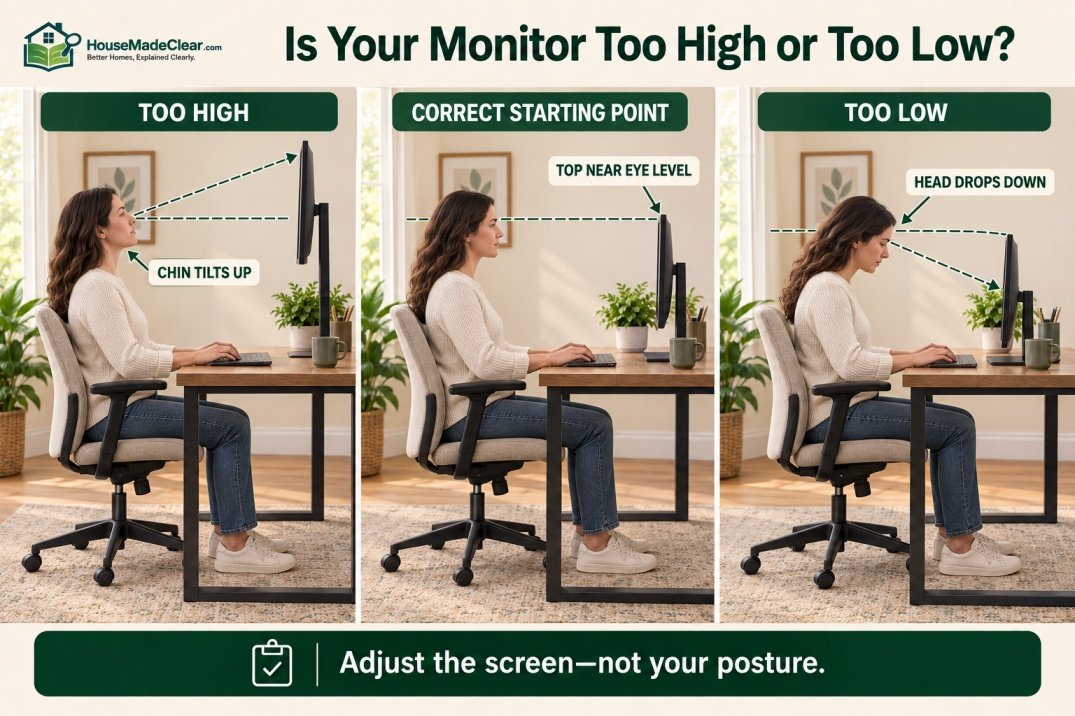
Is Your Monitor Too High?
Possible signs of an overly high screen include repeatedly:
- Tilting your chin upward
- Looking upward with your eyes for long periods
- Raising your head to see the upper screen
A quick check:
Sit comfortably and look straight ahead.
If your eyes naturally land near the:
middle or bottom of the monitor,
the screen may be too high.
Try lowering it.
Is Your Monitor Too Low?
If the screen is too low, you may repeatedly:
- Drop your chin
- Bend your neck forward
- Lean toward the desk
This is common when using:
- Laptop
- Monitor with short stand
Raise the screen gradually until the upper display approaches your natural eye line.
Do not raise it far above eye level.
Why Putting a Monitor on a Computer Case Can Be Too High
Older desktop setups often placed a monitor directly on top of:
- Computer case
- Large riser
OSHA specifically notes that putting a monitor on top of the computer case can make it too high for many users.
Modern flat screens usually provide more flexibility.
Start with the monitor on the desktop and raise it only if your eye line requires it.
Monitor Height for Gaming
Gaming does not require a fundamentally different monitor height.
Use the same principles:
- Upper screen around eye level
- Main viewing area slightly below
- Screen directly in front
The correct distance may change with:
- Screen size
- Game
- Field of view
but avoid positioning the screen unusually high or extremely close simply because the workstation is used for gaming.
Monitor Height for Coding
Coding often involves long periods of looking at:
- Upper
- Middle
- Lower portions of the screen
A large vertically oriented display can extend significantly downward or upward.
Keep the primary working area comfortably positioned rather than trying to center the physical panel at eye height.
If you use a vertical monitor as a secondary screen, position the content you read most often near your comfortable viewing zone.
Monitor Height for Reading and Writing
For document-heavy work, users often spend more time looking at the center or upper-middle part of the screen.
Place that working area where your eyes naturally fall.
This can sometimes mean moving application windows within a very large monitor instead of moving the physical screen.
Portrait Monitor Height
A monitor rotated vertically can become extremely tall.
Do not automatically center the physical monitor with your eye line.
Doing so may put the top far above eye level.
Instead:
- Keep the useful upper portion near eye level
- Let more of the display extend downward
You may also position commonly viewed application windows lower on the screen.
Monitor Position for Video Calls
A webcam may sit:
- On top of monitor
- Inside laptop
- Separately
Do not raise the monitor too high simply to achieve a flattering camera angle.
Prioritize comfortable workstation posture.
If necessary, use:
- Separate webcam
- Adjustable webcam mount
so camera position does not determine monitor height.
Common Monitor Height Mistakes
1. Putting the Center of a Large Monitor at Eye Level
Problem:
Top of screen becomes too high.
Better approach:
Keep the upper viewing area around eye level.
2. Looking Up at the Screen
Problem:
Monitor is likely too high.
Better approach:
Lower it until your gaze naturally falls slightly downward.
3. Using a Fixed “Height From Floor” Number
Problem:
Ignores differences in user and chair height.
Better approach:
Measure from your eyes.
4. Sitting Too Close
Problem:
Large screen dominates the visual field.
Better approach:
Start within a comfortable portion of the 20–40-inch viewing range.
5. Sitting Too Far Away
Problem:
You lean toward screen.
Better approach:
Bring monitor closer or increase text size.
6. Raising a Laptop Without an External Keyboard
Problem:
Screen improves but keyboard becomes too high.
Better approach:
Separate display and input positions.
7. Centering Yourself Between Two Unequally Used Monitors
Problem:
Head remains turned toward primary screen.
Better approach:
Put primary display directly ahead.
8. Ignoring Windows
Problem:
Glare leads to awkward screen and body positioning.
Better approach:
Try perpendicular monitor/window orientation.
9. Buying a Monitor Riser Automatically
Problem:
Screen becomes unnecessarily high.
Better approach:
Check eye level first.
10. Adjusting Monitor Before Chair
Problem:
Later chair adjustments invalidate screen position.
Better approach:
Chair first, monitor afterward.
How to Set Your Monitor Height Step by Step
Step 1: Sit Normally
Sit back in your office chair in the posture you actually use.
Step 2: Adjust the Chair
Make sure:
- Feet are supported
- Shoulders relaxed
- Keyboard usable
Step 3: Face Straight Ahead
Your body should point toward the main monitor.
Step 4: Look Straight Ahead
Notice where your horizontal eye line crosses the screen.
Step 5: Adjust Monitor Height
Move the display until its:
top line is around or slightly below your eye level.
Step 6: Check the Center
The center should fall naturally below your straight-ahead eye line.
Step 7: Adjust Distance
Start around:
arm’s length
and refine within a comfortable range.
Step 8: Increase Text Size if Necessary
Do not compromise posture simply to read tiny text.
Step 9: Check Windows
Look for reflections and strong glare.
Step 10: Use the Setup for a While
Small adjustments may be needed after real work.
The correct position is the one that remains comfortable during normal tasks—not just during a 30-second setup test.
Quick Monitor Position Checklist
Before finalizing your workstation, confirm:
- Top of screen at or slightly below eye level
- Main monitor directly in front
- Center of display below horizontal eye line
- Viewing distance comfortable
- Text readable without leaning
- Head not tilted upward
- Neck not constantly bent downward
- Window not causing major glare
- Monitor height works with chair position
- Desk has sufficient depth
- Secondary monitors require minimal head turning
- Laptop setup uses external input devices when raised
- Bifocal/progressive lenses considered where relevant
- Sit-stand setup works in both positions
Quick Monitor Setup Comparison
| Situation | Recommended Approach |
|---|---|
| Single monitor | Center directly in front |
| 24–27 in monitor | Top around eye level |
| Large 32 in monitor | Upper screen around eye level; allow screen to extend downward |
| Ultrawide | Center primary work area in front |
| Dual monitor, one primary | Primary directly in front |
| Dual monitor, equal use | Center between screens |
| Laptop | Raise screen + external keyboard/mouse |
| Standing desk | Re-establish eye-level relationship when standing |
| Bifocals/progressive lenses | Lower screen as needed |
| Window nearby | Position screen perpendicular where possible |
Final Answer: How High Should Your Monitor Be?
For most home-office computer setups:
Position the top of your monitor at or slightly below eye level.
Your eyes should generally look:
slightly downward toward the center of the screen
rather than upward.
For viewing distance, start around:
20–40 inches from your eyes
and adjust based on:
- Screen size
- Text size
- Vision
- Comfort
Keep the main monitor:
directly in front of you
rather than off to one side.
For a quick home-office setup:
- Adjust your chair.
- Sit naturally.
- Look straight ahead.
- Place the upper part of the screen around your eye line.
- Let the screen extend downward.
- Start around arm’s length away.
- Fine-tune height and distance until you can work without repeatedly moving your head or leaning toward the display.
There is no universal monitor height from the floor that works for everybody.
The correct measurement comes from:
your seated eye height + chair + desk + monitor
rather than one fixed number.
Frequently Asked Questions
How high should your monitor be?
For most users, the top of the monitor should be at or slightly below eye level when sitting comfortably. The center of the screen should naturally fall below your horizontal eye line.
What is the ideal monitor height?
The ideal monitor height places the upper portion of the screen around eye level while allowing you to look slightly downward toward the center without bending or tilting your neck.
Should the top or center of a monitor be at eye level?
The top of the screen should generally be around or slightly below eye level. Placing the center at eye level can make a large monitor unnecessarily high.
Should you look straight at a monitor or slightly down?
Your head should remain relatively neutral while your eyes naturally look slightly downward toward the main viewing area of the screen. You generally should not need to tilt your head upward.
How far should a monitor be from your eyes?
OSHA describes approximately 20–40 inches as a preferred viewing-distance range. The ideal distance depends on monitor size, text size, vision and individual comfort.
Is arm’s length a good distance for a monitor?
Yes. Around arm’s length is a practical starting point for many users. Adjust the screen closer or farther until you can read it comfortably without leaning.
What is the correct monitor height for a 27-inch monitor?
There is no special fixed height for a 27-inch monitor. Position the upper edge around or slightly below eye level and keep the center of the display below your straight-ahead sight line.
How high should a 32-inch monitor be?
With a 32-inch monitor, avoid placing the center directly at eye level because that may put the top too high. Keep the upper viewing area around eye level and allow more of the display to extend downward.
How should two monitors be positioned?
If one monitor is used most often, place it directly in front and the second beside it. If both are used equally, position them side by side and center yourself between them while minimizing head movement.
How high should a laptop screen be?
For longer work sessions, raise the laptop display so the upper screen approaches eye level and use an external keyboard and mouse. This allows the screen and keyboard to be positioned independently.
Should a monitor be lower if you wear bifocals?
Often, yes. Bifocal or progressive-lens users may need the monitor lower so they can view the screen without tilting their head backward.
Should a monitor face a window?
Ideally, position the monitor perpendicular to nearby windows when practical. This can reduce glare and reflections compared with placing the screen directly toward or away from a bright window.